
How it works
Upload everything
Mix photos with and without location. Troven sorts them all by time.
Time does the first pass
A photo without GPS joins the stop you were at around the same time, on the same day.
AI looks at the rest
It recognizes well-known places in the image and flags the ones it is unsure about.
You finish it
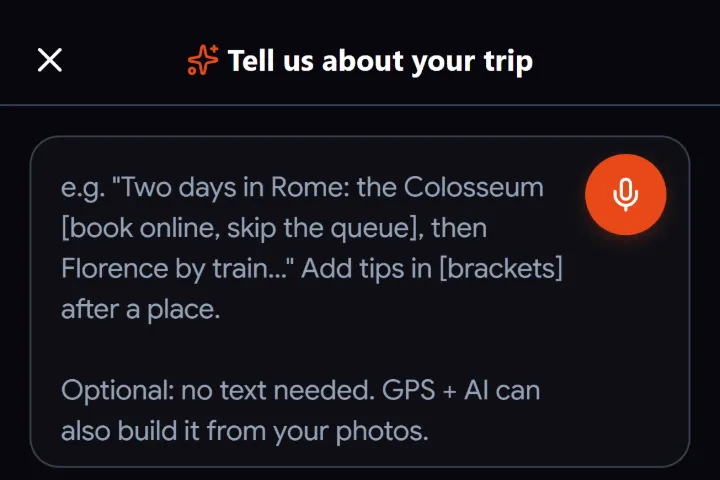
Place any leftover photo by hand, or describe the trip and let Troven build the stops.
Why photos lose their location
Phones store the place a photo was taken inside the file, but several things remove it or never save it:
- Camera location was off. Check your phone’s privacy settings for the camera app.
- Chat apps and social media. WhatsApp, Instagram and most platforms strip the location when you send or download a photo.
- Screenshots and edits. Screenshots never have a location; some editing apps drop it on export.
- Android browsers. When you pick photos in a browser on Android, it removes their location before any site sees them. Videos keep theirs.
- Cameras without GPS. Many standalone cameras save the date but not the place.
How Troven places them
- By time. If a photo has a date, Troven attaches it to the stop with GPS photos taken closest in time, on the same day and within a few hours. This relies on the camera clock: Troven does not adjust time zones, so photos from a camera still set to home time can join the wrong stop.
- By what is in the picture. Photos still unplaced go to Troven’s AI, which recognizes well-known places from the image and videos from a frame. Confident matches are placed and labelled Auto-placed, so you can change them; unsure ones wait in a Not sure about these list, each with a confidence level.
- By you. Anything left stays unassigned until you drop it on a stop.
When nothing has a location
If none of your photos carry a place, describe the trip instead. (Picked them on Android? If you can, copy the originals to a computer and upload them there: desktop browsers keep the location.) Type it or record voice notes of up to a minute each: where you went, in what order, what you loved. Troven’s AI turns that into stops, descriptions and tips. You can also list the places in order with a start date.
Fix it at the source next time
Turn on location for your camera before the trip and back up the originals. Ask friends to send photos as files (in WhatsApp, as a Document), since chat photos lose their location. Set a standalone camera’s clock to local time.
Questions, answered
Why do my photos have no GPS?
How can I check if a photo has a location?
Can the AI recognize any place?
What if my photos have no date either?

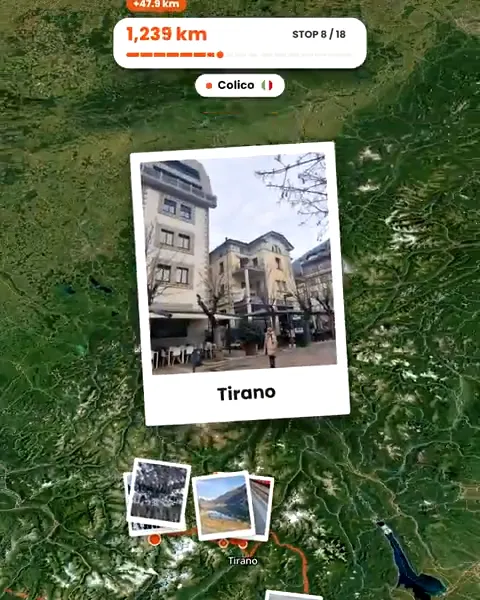
Your photos already hold the trip.
Upload them and see your route, map and itinerary come together. Free on the web.
Keep reading
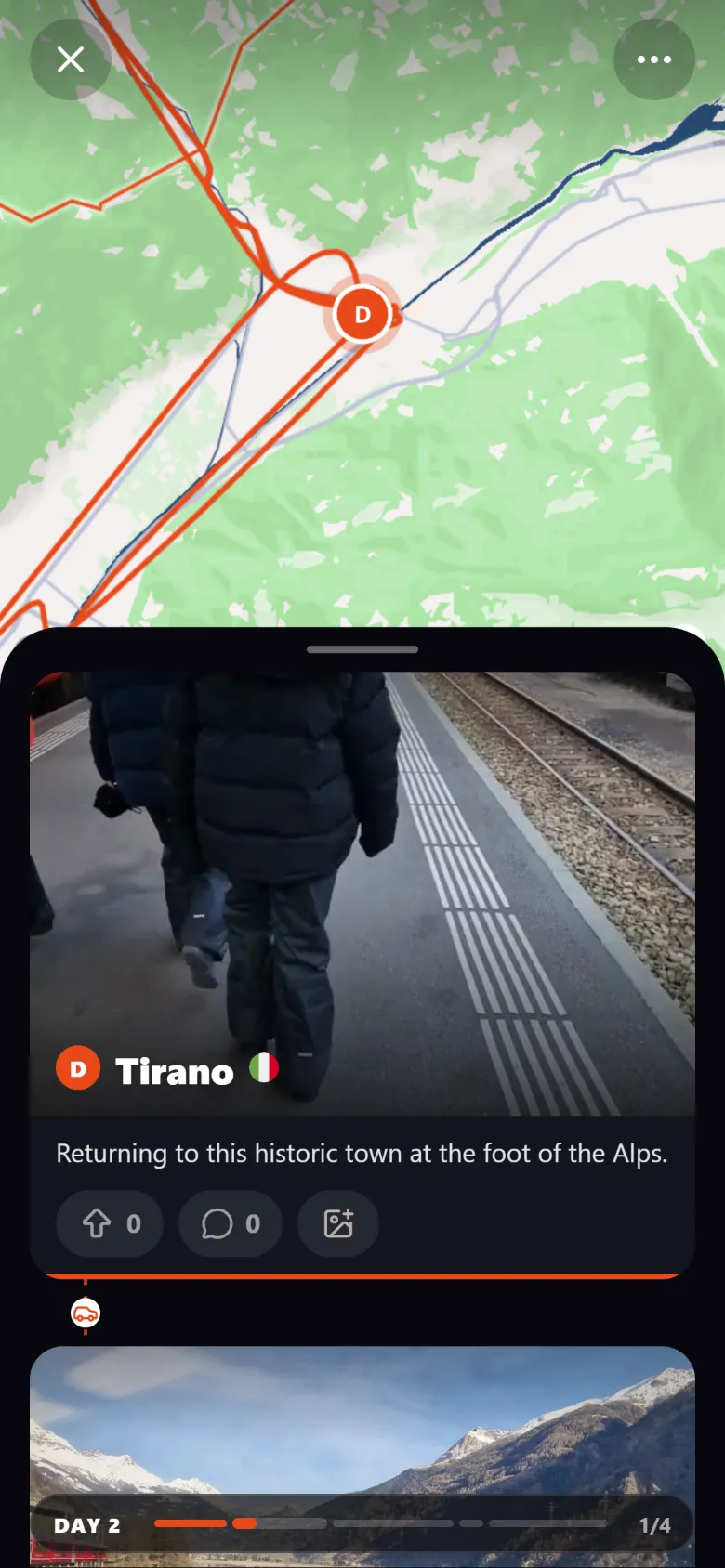 ProductCreate an interactive travel map from your photosTroven reads the location saved in your trip photos and builds an interactive travel map with your route, your stops and your photos. Free on the web.
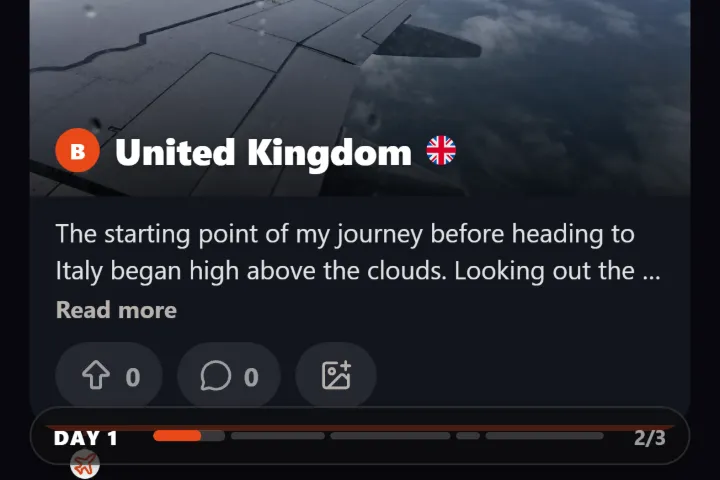 GuideHow to reconstruct an old trip from photo GPS and timestampsRebuild a trip from years ago using the GPS and timestamps saved in your photos, plus what to do when the dates are wrong or the location is missing.
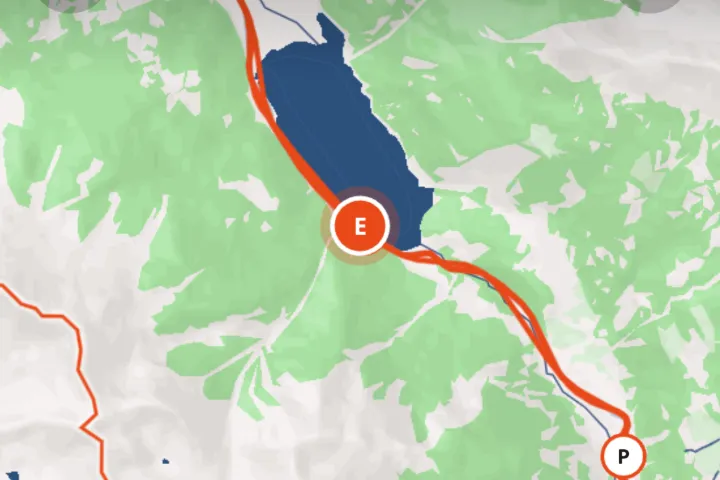 GuideHow to create a travel map from your photosYour photos already know where you were. How to turn them into an interactive travel map with your route, stops and photos, without tracking the trip.